
AWS Lightsail is supposed to be the simple solution for getting a cloud server running – not! Well, not at least if you are trying a MEAN (MongoDB, Express, Angular, NodeJS) instance. Like with most AWS services, there is erratic documentation. And the Interverse does offer some helpful solutions. But, for me, they were sorely lacking in the detail I needed.
Mind you, when something is new, I prefer the cut and paste or monkey-see, monkey-do method of coding. After the first couple of times, when I understand how the samples work, or have modified the samples enough to fit my needs, this isn’t necessary. But, to get up and running quickly, that’s the best way to go.
I went into Lightsail assuming that yes, the hard work would be done for me and all I would have to do is set up the database, plop my code in there and – voilia! – it would work. It wasn’t quite that simple.
I am skipping a few steps in this document. I’m assuming you know how to write your Express and Angular code. I’m assuming you know how to use git. I’m assuming you know how to set up for dev and production environments. What I’m focusing on is the stuff you’ll need to do to get your app running in AWS Lightsail.
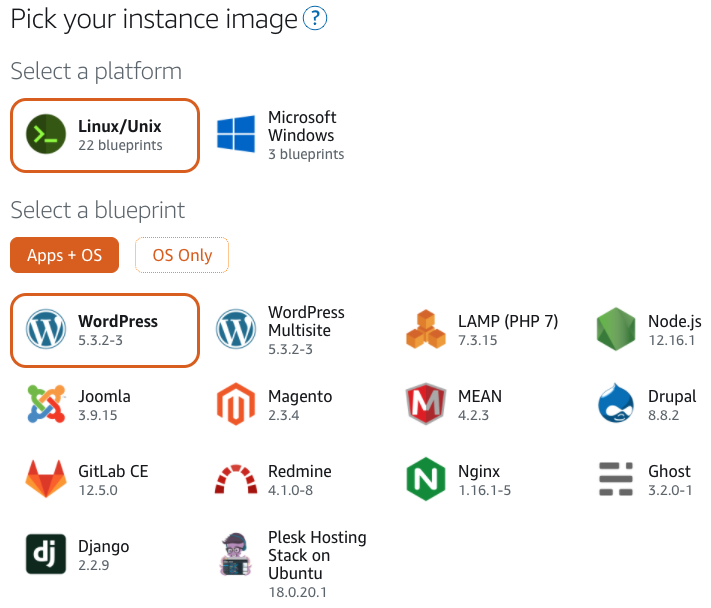
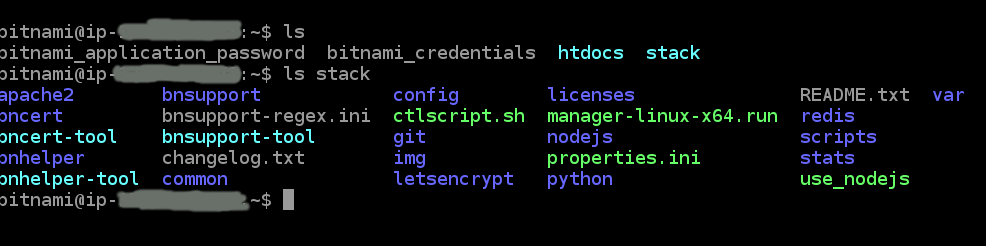
When you create a MEAN stack, you get an apache instance, an instance of MongoDB on the server, and NodeJS installed. What you need to do is get your own deployable code on there, get the user on the database set up and execute your code.
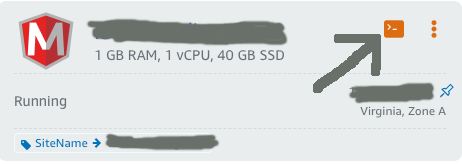
I mostly use the integrated terminal that Lightsail provides:
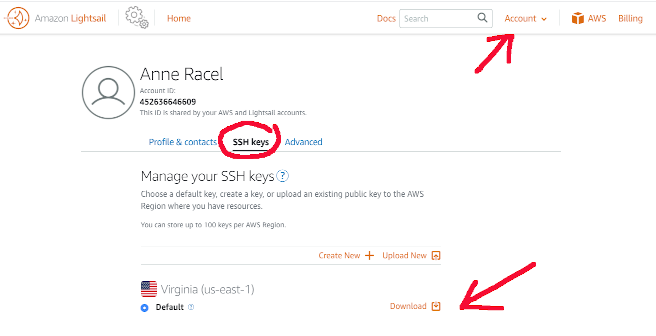
If you’d prefer to use your own terminal, you’ll need to download the .PEM file that AWS provides. To do that, click on the Account link in the upper right hand corner, click on SSH Keys, then click the download button. If there is no SSH key, you’ll need to click on Create New and follow that process.
The first thing that this YouTube video by Mike Coleman of the AWS Lightsail team suggests is changing the port that Apache is running on from 80 to something else. So I did. Problem is, when I then try running Angular from port 80, it was ‘listening’ to 127.0.0.1 not :::, so it wasn’t visible outside the box. My first suggestion, then: ignore that direction. We’ll just run our Angular code on the Apache server instead.
The first thing that this YouTube video by Aaron White suggests is creating a MongoDB user for the database your app is going to use. That was a helpful suggestion. Here’s the instructions:
mongo admin --username root --password
The password is found in the bitnami-application-password file.
Switch to the database you’ll be using for your application, then type the following commands, substituting your own info for my_database , myuser and mypassword:
use my_database

db.createUser({ "user": "myuser", "pwd": "mypassword", "roles":["dbOwner"]})
Mike suggests using git for getting your code on the instance. Aaron suggests Filezilla. To me, it’s cleaner and easier to use git, but your mileage may differ. Whichever you use, get your code over onto the server now. I created top-level directories for each.
Again, this is the way I proceeded at this point. Your mileage may vary.
Aaron suggested using Unix’s screen utility when deploying the application. This makes a lot of sense. That way, if you are using AWS’s web-based terminal, when the terminal disconnects, your application is still running. To do this, type screen at the prompt. It won’t look like you’re in another environment, but you’ve actually opened up a separate terminal session. Start your Express instance, then exit out of the screen session by typing ctrl+a+d. If you need to get back into that particular session, type screen -ls to see a list of running processing. Then select the process you want to resume by typing screen -r <process id>.

The is much more that you can do with screen. I would suggest checking out the documentation. Or, this site is quite helpful.
You will need to open the port on which your Express application is running. Otherwise, your Angular app can’t see it. Yeah. I would have thought that ‘localhost’ would work. But it didn’t.
So back to the web Lightsail interface. Go to your Lightsail instances and select the box showing the instance you’re working with. Click on the Networking tab. In Firewall section, click the Add Another link. Use Custom and the port number that you are using.
As a side note, this then means your Express app is wide open. So I would strongly suggest that you lock the app down to only accept requests from the local server.
Another side note: it doesn’t cost anything extra (as of this writing) to have a static IP. If you don’t have one, you could end up with a different IP for your instance any time it reboots. That means you’d have to change the whitelisting for your Express app with each reboot.
So now we have the Express app running, we’re ready to turn to the Angular one.
First off, of course, is to download all the Node modules you need. So don’t forget to run npm install --production. The flag prevents it from downloading the dev only libraries. Next, you need to compile your app: ng build --prod. But for some reason, the system can’t find ng. So I had to run the following:
./node_modules/.bin/ng build --prod
Now, back up to the top-level directory. If you do a listing, you’ll see that htdocs actually points to the htdocs directory for apache. This is where we want our Angular code to go. If you want to save the old stuff, you’ll need to move it to a separate directory. Once you do that, move your stuff in:
cp -R myprog/dist/myprog/* htdocs
Now, if everything has aligned correctly in the universe, you should be able to see your application running when you go to your assigned IP address.
On another note. For me, Lightsail is not ending up being the inexpensive option I thought it would be. I need my app to run on https. To do so, though, you need to have a load balancer attached. The cost on a load balancer? $18/month. That moves the cost from affordable to ouch! So, I’ll get this all running as an intellectual exercise. But then I think I may need to move to more affordable solution.